Timeline
Zoom from the cursor, pan, and light up one scope name. An empty timeline prints the same reminders: ruler wheel zoom, Ctrl+wheel zoom, WASD, Ctrl+drag to select scopes, Home or a double-click on the ruler to fit, space to follow. Navigation is on the home page. Scope search is on the features page.
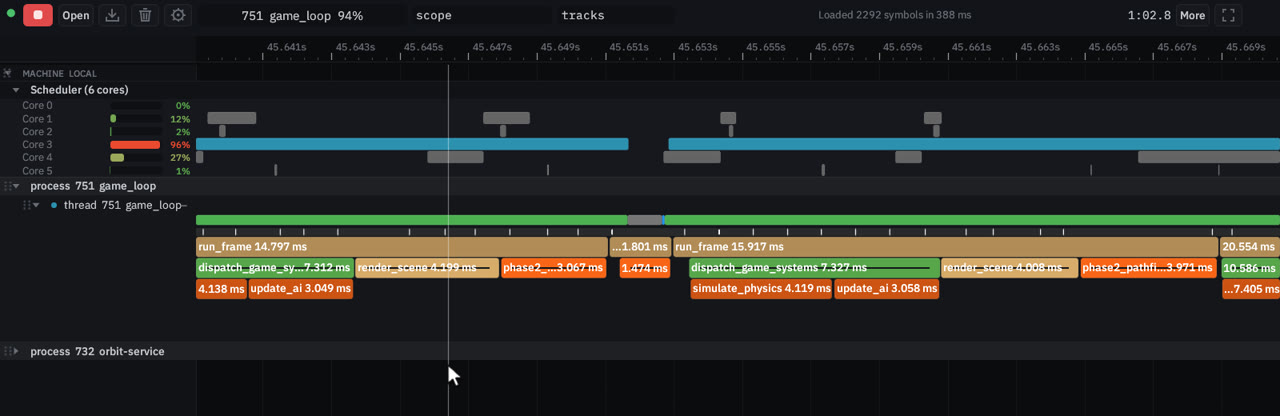
Pan, zoom, follow, fit
| Key | What it does |
|---|---|
| A / D, or Left / Right | Pan in time. The arrows pan only when nothing is selected. With a selection, Left and Right nudge that selection instead |
| W / S | Zoom, locked to the cursor. Panning or zooming turns Follow off |
| Up / Down | Scroll the track list, when nothing is selected |
| Page Up / Page Down | Scroll the track list by a page |
| Space | Toggle Follow latest |
| Home | Fit the capture |
Follow latest keeps the window on the live edge. More → “Follow latest Space” is the same switch. More → “Follow latest” off, or any pan or zoom, freezes the window where it is. When a live capture stops, Follow stops too and the window stays where it was. It does not jump out to the whole capture.
Home, or a double-click on the ruler, fits the content cluster: the time that actually has events, not the empty stretch before the first or after the last. The fitted window is never narrower than 1 µs, so a tiny capture cannot freeze the ruler. More → “Fit capture Home”.
Wheel over the ruler always zooms. Over the tracks, the wheel scrolls (with inertia). Ctrl+wheel or ⌘+wheel, or a pinch, zooms the tracks around the cursor. A left-drag that did not start on a sample bar pans.
These keys do nothing while a text field has focus, except Escape, which clears the scope search.
Mouse on the tracks
| Gesture | Result |
|---|---|
| Hover a scope | Tooltip |
| Click a scope | Select it. Click empty canvas to clear |
| Double-click a scope | Zoom to it, at 1.1× its duration. A value lane does not zoom |
| Click a thread header | Focus that thread. Click it again to release. Other threads’ scheduler slices go grey, and a chip above the timeline names the thread |
| Click a sample tick | Copy that sample’s call stack to the clipboard, leaf first |
| Left-drag on a thread’s sample bar | Select that thread’s samples. The report recomputes for them |
| Right-drag anywhere | Select every thread’s samples in that range (ruler, bar, or empty space) |
| Shift+drag | Add to the sample selection |
| Ctrl+drag or ⌘+drag | Draw a rectangle over scopes. On release the scopes inside are summarised and copied to the clipboard. The per-function summary covers all of them; the individual list stops at 500 and says how many more there were |
| Right-click a scope | Menu: Sampling report for this scope, Highlight every instance |
Ctrl+drag does not zoom. The old note that said it did was wrong.
Escape clears the scope search, a Live-row highlight, the selection, and a rectangle drag, all at once.
Scope search
The box hint is scope. Typing a name leaves matching scopes lit and greys out the rest. The hover text is “Grey scopes that do not match”. Escape, or clearing the box, brings the rest back.
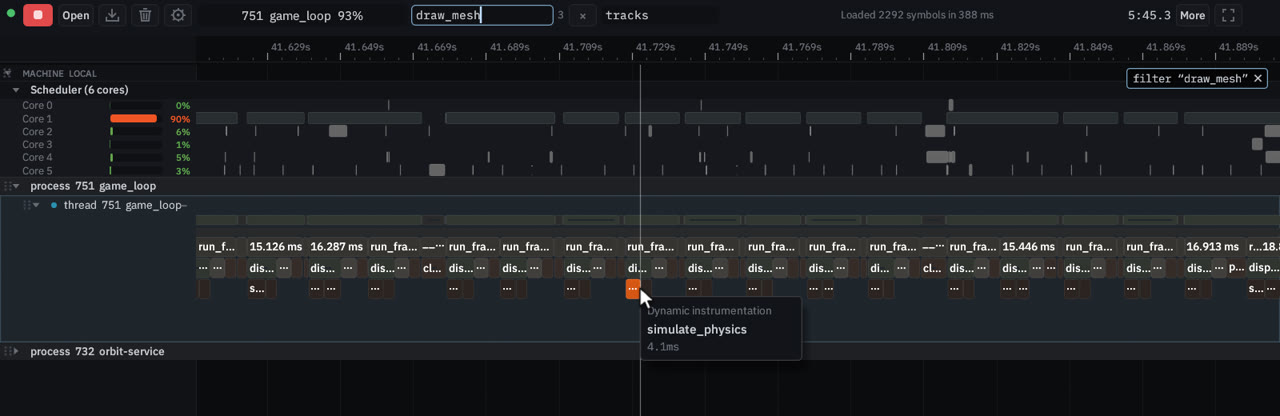
Tracks filter
The box hint is tracks. It hides rows whose labels do not match, and a counter reads how many of the total are still shown. The × on that box clears it, and so does Escape. ?tracks= on the page URL fills the box when the viewer loads, with + or %20 as spaces.
?collapse=scheduler starts with the scheduler track folded, which matters on a machine with many cores.
The full binding list is the keyboard and mouse reference.