Systems
Where the thread ran, and what the profiler itself is doing. The scheduler is on the home page. The service’s own lanes are on the features page.
Scheduler and thread state
CSW draws the scheduler: one lane per core the capture saw, under a track you can fold. ?collapse=scheduler starts it folded. Hover a slice for which thread was on that core.
States draws a strip of thread states on each thread. The names the tooltip uses are Running (on a CPU), Runnable (ready, waiting for a CPU), Sleeping (interruptible), Uninterruptible sleep, Stopped, Traced, Dead, Zombie, Parked and Idle.
Click a thread header to focus it. Click again to release. The scheduler keeps that thread’s slices in colour and greys the others, and a chip above the timeline names it. Clicking one of that thread’s scopes does the same. A click on a scheduler slice, a state bar, or a sample tick does not move the focus. Escape, a click on empty canvas, or the chip’s × clears it.
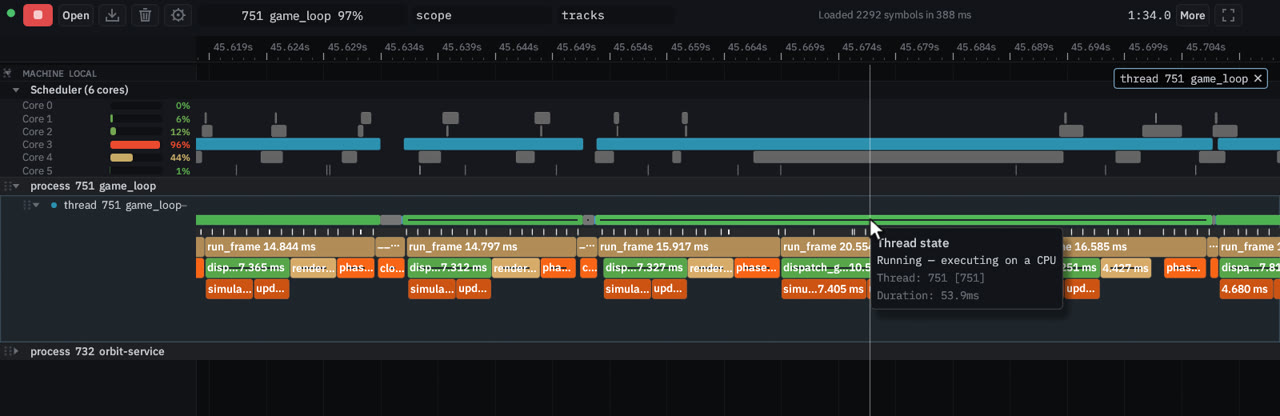
System-wide scheduling needs perf_event_paranoid at 0 or below, or root / CAP_PERFMON / CAP_SYS_ADMIN. If the lanes stay empty, Troubleshooting has the check.
The service, profiling itself
orbit-service instruments its own capture loop. The value lanes it emits include service cpu %, service rss MiB and events per pass, plus ring fill (perf switch rings fill %, scope rings fill %, viewer ring fill %) and scope records lost. A vertical cursor reads them across the capture. The service’s own scopes (capture pass, read samples, unwind, and the rest) sit on its tracks with everything else.
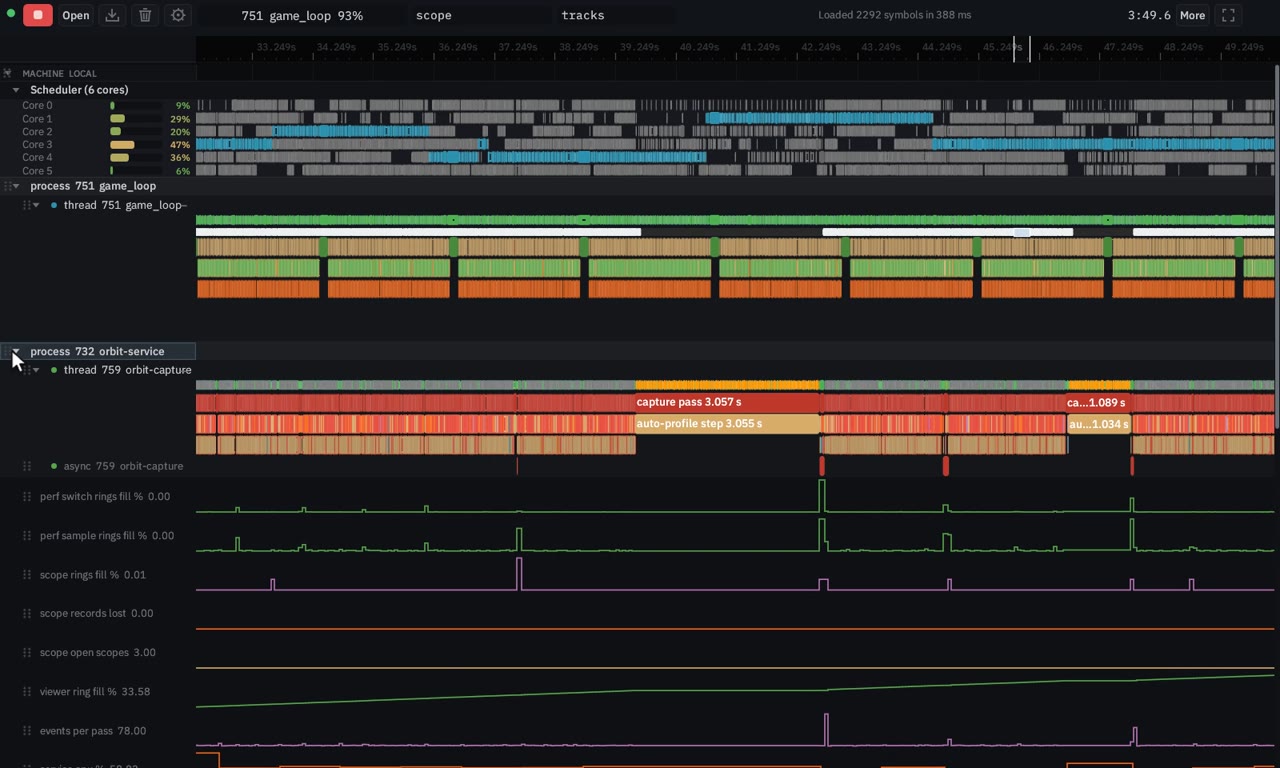
The viewer’s Self pane
More → “Self F2”, or the F2 key, opens a pane with the viewer’s own frame times. F3 toggles Benchmark, which asks the service for fake scopes at a rate you set. Both are about the tools, not the target. R, I, F2 and F3 do nothing while that Self pane is the one taking keys.